

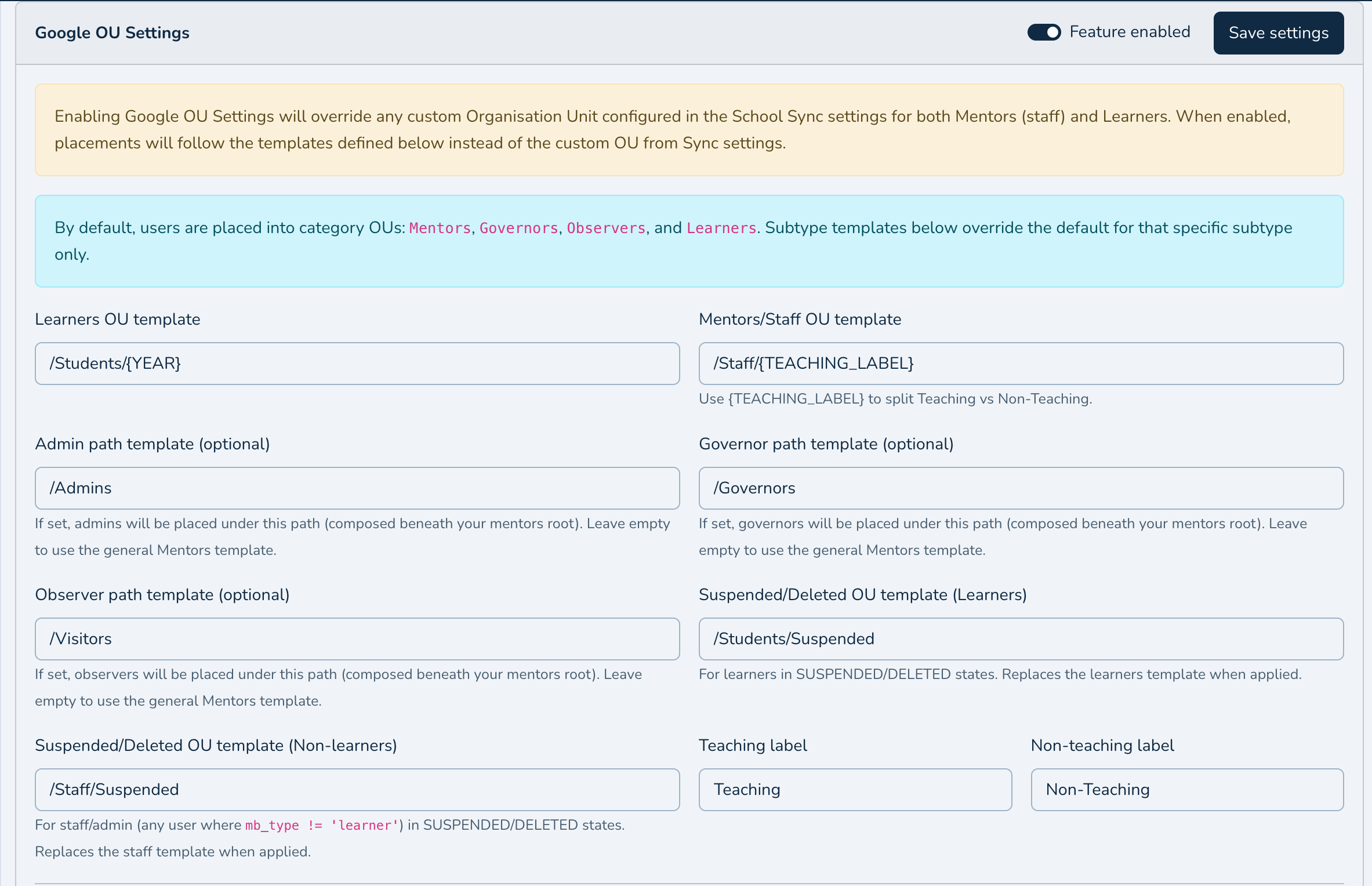
Google OU Mapping
This guide explains how to use the Google OU Mapping area in ADAdmin and how it affects user provisioning in Google Workspace.
What is it?
Google OU Mapping lets you control where users are placed in your Google Workspace Organisation Units (OUs). Instead of a single "custom OU" from School Sync settings, you can define templates and mappings so that learners and staff are organised automatically (for example by year group or by teaching vs non‑teaching).
When enabled, these settings override any custom Organisation Unit defined in School Sync settings. This applies to both Mentors (staff) and Learners.
Where to find it
Go to: Admin > School Settings > Google OU Settings
URL: /admin/google/ou-settings
Enabling the feature
Toggle "Feature enabled" and click "Save settings".
Important: Once enabled, OU placement follows the templates on this page. The "custom OU" from School Sync settings is ignored for both Mentors and Learners.
Templates and placeholders
You can define base templates for:
Learners OU template
Mentors/Staff OU template
Optional sub‑paths for Admins, Governors, and Observers (if left empty, they use the Mentors template)
Suspended/Deleted templates (separate templates for Learners and Non‑learners)
Supported placeholders in templates:
{YEAR} — replaced using the value derived from the mb_year mapping
{INTAKE_YEAR} — replaced using the value derived from the mb_year mapping
{TEACHING_LABEL} — for staff, replaced with your Teaching vs Non‑teaching label
Notes:
Paths should begin with a leading slash, e.g. /Learners/{YEAR}
For staff, you can split the tree by Teaching vs Non‑Teaching using {TEACHING_LABEL}. Configure the labels in the Teaching label fields.
Year/Intake mappings
Each distinct mb_year detected for your school is listed. You can override the default display for placeholders.
Columns:
mb_year (key)
YEAR placeholder value (e.g. Year-11)
INTAKE_YEAR placeholder value (e.g. 2021)
You can add or remove mappings. Rows marked "Default" are auto-filled based on your school’s data.
Suspended/Deleted users
Learners: If a learner is SUSPENDED or DELETED, the Learners Suspended/Deleted template is used instead of the standard Learners template.
Non‑learners (staff/admin/governor/observer): If SUSPENDED or DELETED, the Non‑learners Suspended/Deleted template is used instead of the staff template.
Live preview (no Google changes)
The Preview & Dry‑Run panel shows the resolved OU path for sample users and per year group as you change fields.
This preview is local only; it does not make any changes in Google.
How this affects Google provisioning
Precedence: When Google OU Mapping is enabled, it takes precedence over the School Sync "custom OU" setting for both Mentors (staff) and Learners.
Placement logic:
Learners: Use the Learners OU template with placeholders resolved from your Year/Intake mappings. If suspended/deleted, use the Learners Suspended/Deleted template.
Staff (Mentors): Use the Mentors template. If Admin/Governor/Observer sub‑paths are provided, those users are placed under those sub‑paths instead. {TEACHING_LABEL} splits Teaching vs Non‑Teaching where applicable. If suspended/deleted, use the Non‑learners Suspended/Deleted template.
Timing: Changes are applied on the next provisioning run (scheduled sync) or when you run a provisioning command manually.
Tips and validation
Ensure every template starts with "/".
Keep mappings consistent; YEAR and INTAKE_YEAR should reflect your local naming policy.
Use the on-page preview first, then a CLI --dry-run for a full dataset check.
After saving settings, allow the next scheduled Google sync to run or trigger provisioning manually if needed.