

Overview
Post Reminder lets administrators set a reminder against a WordPress post so that an email address can be associated with a follow-up time.
The plugin provides two main user-facing features:
A Post Reminder box in the post editor for adding a reminder
A Post Reminder admin screen for viewing and deleting saved reminders
Where to find it
There are two places you will use this plugin.
In the post editor
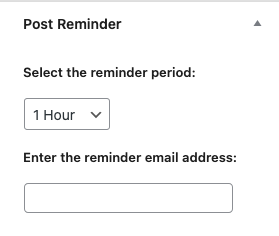
When editing a post that is not yet published, a Post Reminder box appears in the sidebar.
This box allows you to:
Choose how far in the future the reminder should be set
Enter the email address for the reminder
Adding a reminder to a post
How to add a reminder
Open an existing post that has not yet been published.
Find the Post Reminder box in the right-hand sidebar.
Choose a reminder period.
Enter the reminder email address.
Update the post.
The reminder is then stored and will appear in the Post Reminder admin list.
Available reminder periods
The plugin currently offers these reminder timings:
1 Hour
1 Day
1 Week
1 Month
1 Year
The reminder date is calculated from the time the post is updated.
Email address field
Enter a valid email address in the reminder email field. If the email address is not in a valid format, the reminder will not be saved.
Viewing saved reminders
To view reminders:
Go to Smart Stuff → Post Reminder.
Review the reminders table.
The reminders list shows:
Post Title: the title of the related post
Reminder Time: the saved reminder date and time
Reminder Email: the email address entered when the reminder was created
Actions: options for removing the reminder

Deleting a reminder
If a reminder is no longer needed:
Go to Smart Stuff → Post Reminder.
Find the reminder in the list.
Click Delete.
The reminder is removed from the list immediately.
Typical workflow
Example use case
A staff member creates or edits a draft post.
They decide the post needs reviewing later.
They set the reminder period and enter an email address.
They update the post.
The reminder is stored and can be checked from the Post Reminder admin page.
This can be useful for:
Reviewing draft content before publication
Following up on time-sensitive posts
Reminding a team member to revisit content after a defined period