

Overview
Website Activity Monitoring detects when a single visitor rapidly browses multiple monitored pages on your site within a short time window. When the visitor's distinct page count hits a configurable threshold, an alert is recorded and surfaced on your WordPress admin dashboard.
Accessing the Settings
Navigate to Settings → Website Activity Monitoring in the WordPress admin sidebar. You can also click the Settings link on the Plugins page next to the plugin entry.
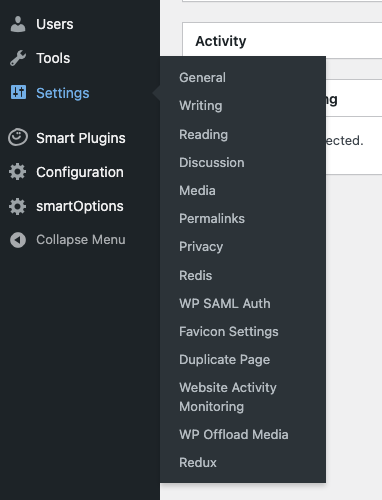
Configuring Detection Rules
All configuration is done on the Website Activity Monitoring settings page under the Detection Settings section.
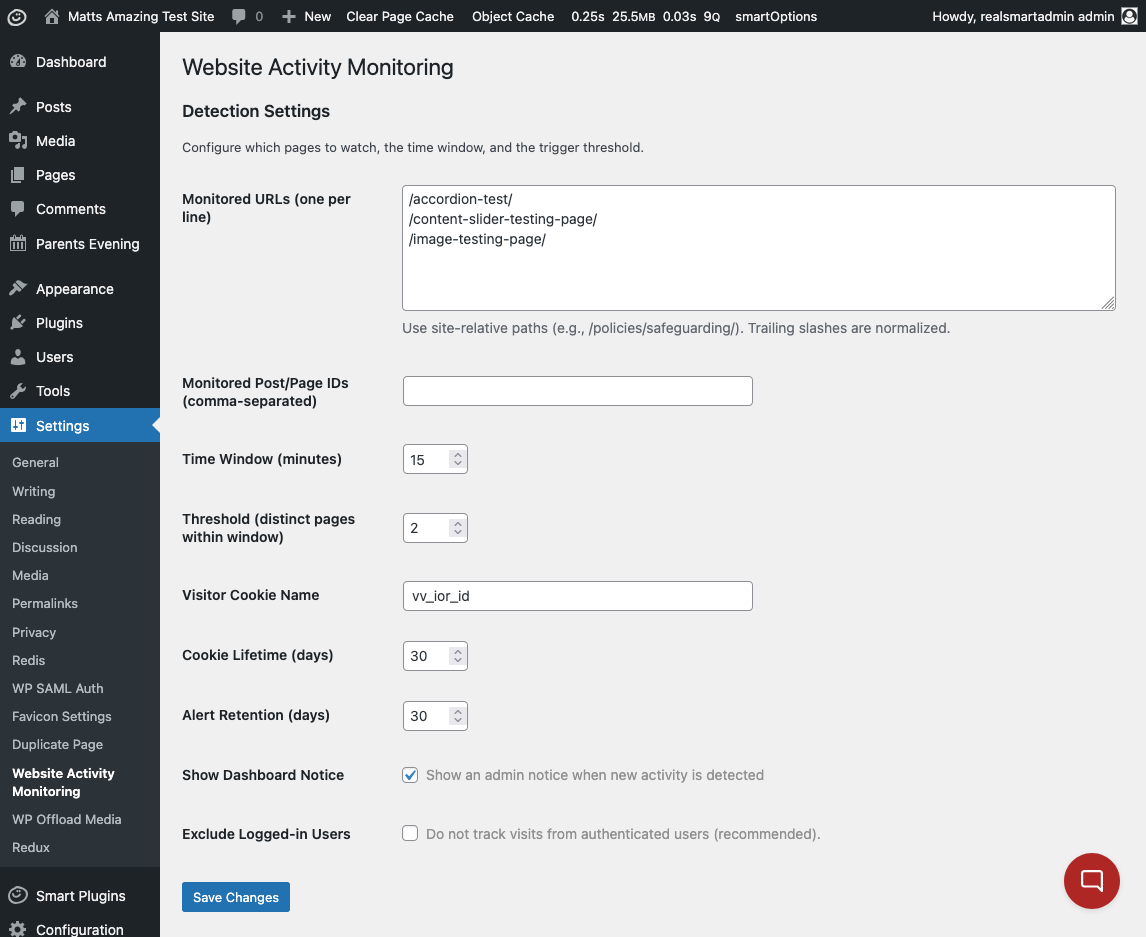
Monitored URLs
Enter the site-relative paths you want to watch, one per line. For example:
Python/policies/safeguarding/
/ofsted/
/contact/
/about-us/
Paths are automatically normalised with a leading and trailing slash.
Full URLs are also accepted — only the path portion is used.

Monitored Post/Page IDs
If you prefer to track specific posts or pages by their WordPress ID rather than by URL path, enter the IDs as a comma-separated list. For example:
JavaScript42, 108, 215You can find a post or page ID by editing it and checking the number in the browser address bar (e.g. post.php?post=42).
Time Window
Set the number of minutes within which page visits are counted. The default is 15 minutes.
If a visitor hits 3 monitored pages within this window, an alert fires (assuming the threshold is 3).
Threshold
The number of distinct monitored pages a single visitor must view within the time window to trigger an alert. The default is 3.
Example: With a 15-minute window and a threshold of 3, a visitor who views /safeguarding/, /ofsted/, and /contact/ within 15 minutes will trigger an alert.
Visitor Cookie Name
The name of the browser cookie used to identify returning visitors across page loads. The default is vv_ior_id. You generally do not need to change this unless it conflicts with another plugin.
Cookie Lifetime
How long (in days) the visitor identification cookie persists in the browser. The default is 30 days. This allows the system to recognise the same visitor across multiple sessions.
Alert Retention
How long (in days) alert records are kept in the database before being automatically purged. The default is 30 days. Old alerts are cleaned up by a daily background task.
Show Dashboard Notice
When enabled (default: on), a warning banner appears at the top of the WordPress dashboard whenever there are unseen alerts.
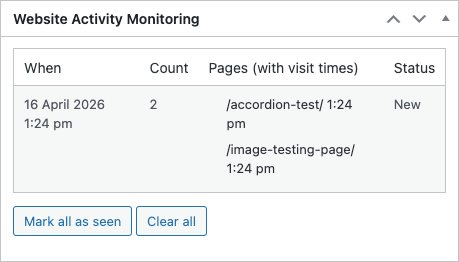
Exclude Logged-in Users
When enabled (default: on, recommended), visits from authenticated WordPress users are not tracked. This prevents staff activity from triggering false alerts.
Viewing Alerts
Dashboard Widget
A widget titled Website Activity Monitoring appears on the main WordPress dashboard (Dashboard → Home). It displays up to 20 recent alerts within the retention period.
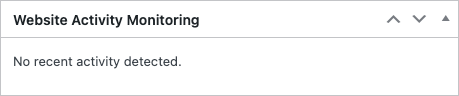
Each alert row shows:
Column | Description |
|---|---|
When | The date and time the alert was recorded (in your site's timezone). |
Count | The number of distinct monitored pages the visitor viewed. |
Pages (with visit times) | A list of the specific pages visited, each with the time of visit. |
Status | New if the alert has not been acknowledged, or Seen if it has been marked as read. |
Managing Alerts
At the bottom of the dashboard widget, two buttons are available:
Mark All as Seen
Click Mark all as seen to change all current alerts from New to Seen status. This dismisses the admin notice banner. The alert records are retained for reference.
Clear All
Click Clear all to permanently delete all alert records from the database. A confirmation dialog will appear before deletion proceeds. This action cannot be undone.
How Detection Works
A visitor lands on any page of your site.
The plugin checks whether the page matches any Monitored URL or Monitored Post/Page ID.
If it matches, the visit is recorded against the visitor's cookie identifier.
The plugin counts how many distinct monitored pages that visitor has viewed within the configured Time Window.
If the count meets or exceeds the Threshold, an alert is created.
Each visitor can only trigger one alert per time window to prevent duplicate noise.