

How to Enable the Smartparents App
Sign into Smartadmin
https://provision.realsmart.co.uk/
Navigate to the Smartparents section in the left-hand navigation bar.
https://provision.realsmart.co.uk/admin/smartparents?page=settings
Change the Smartparents setting from No to Yes.
This will enable the Smartparents app for your school and allow you to generate PINs for parents so they can link themselves to their child(ren).
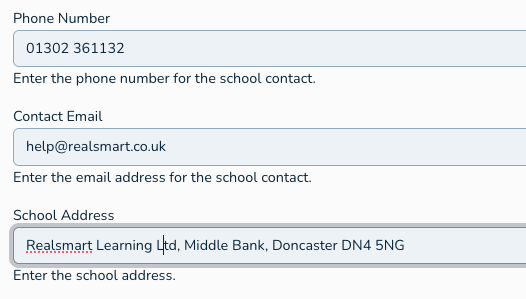
Now complete the school contact details:
Phone Number
Contact Email
School Address
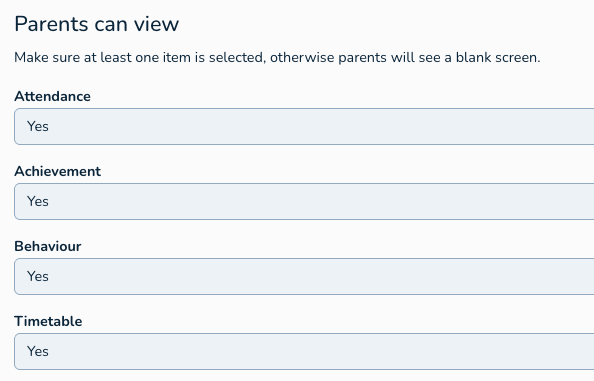
Now you can choose what you want parents to be able to view:
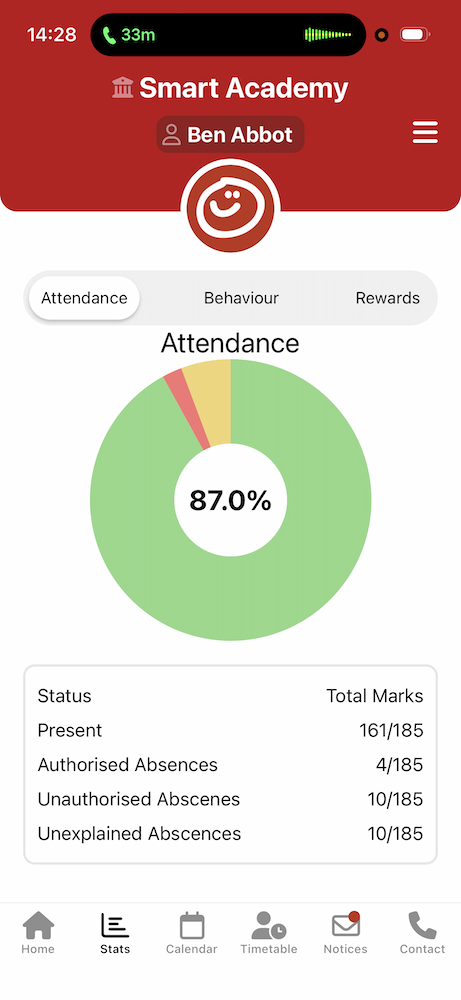
Attendance - This shows the Attendance summary for the student. If the data is available from your MIS
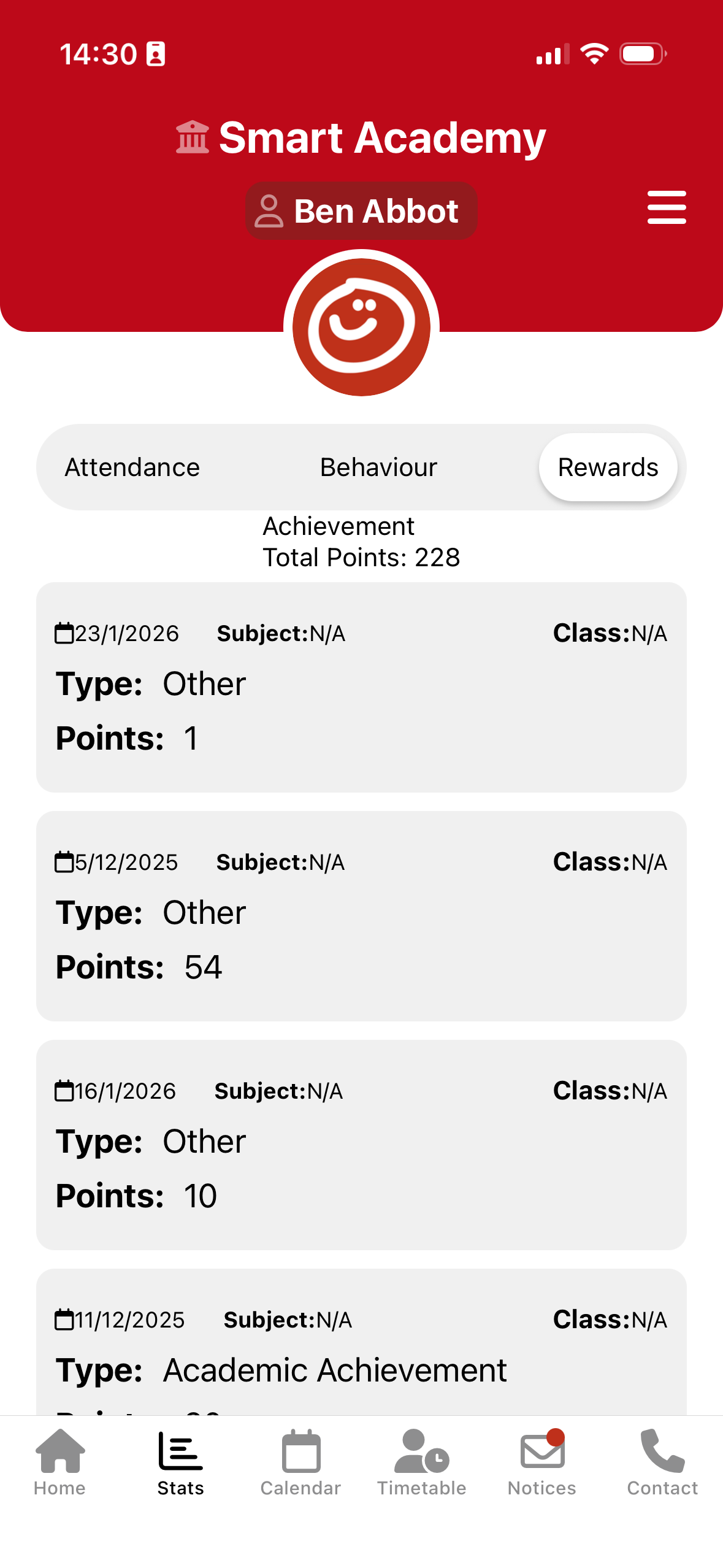
Achievement - This shows the Achievement data for the student. If the data is available from your MIS
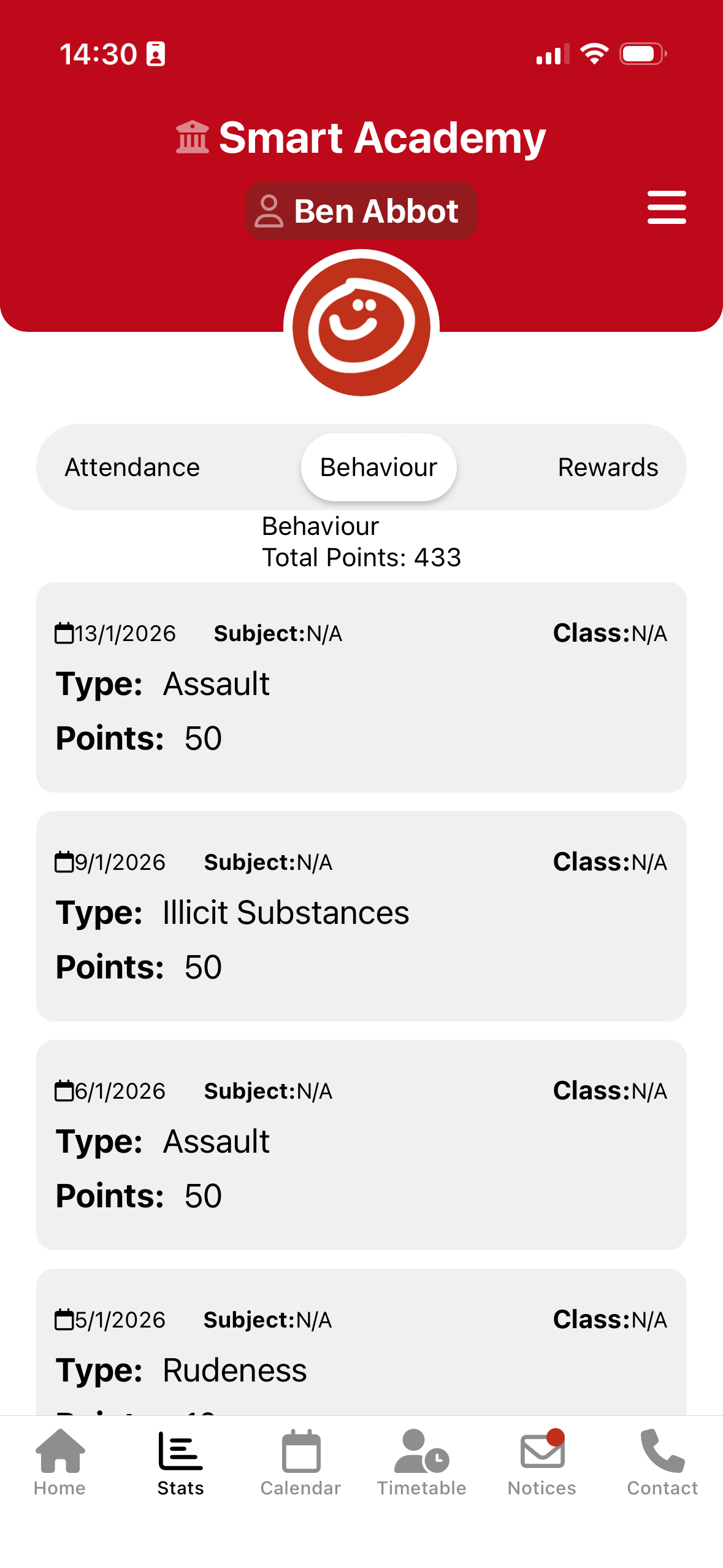
Behaviour - This shows the Behaviour data for the student. If the data is available from your MIS
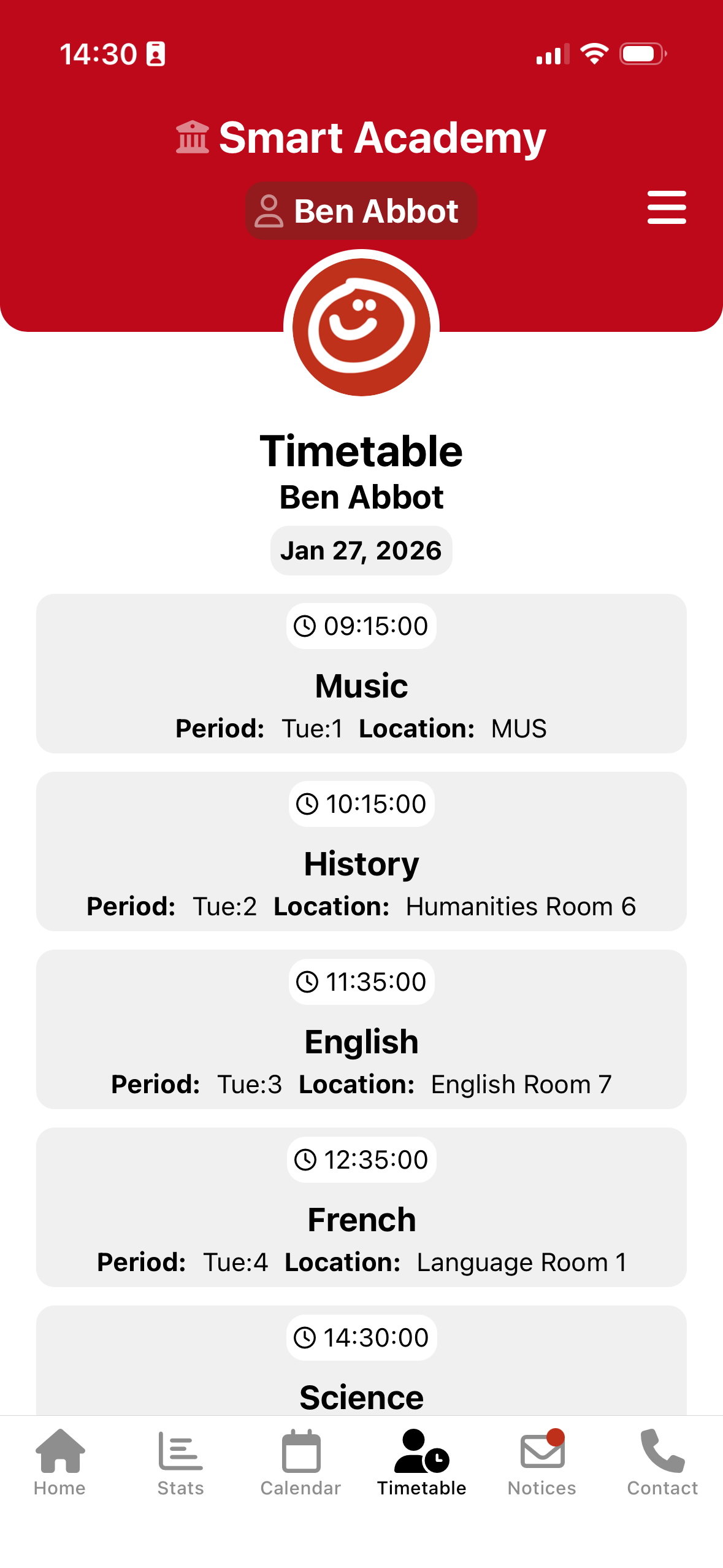
Timetable - This is the students timetable from your MIS
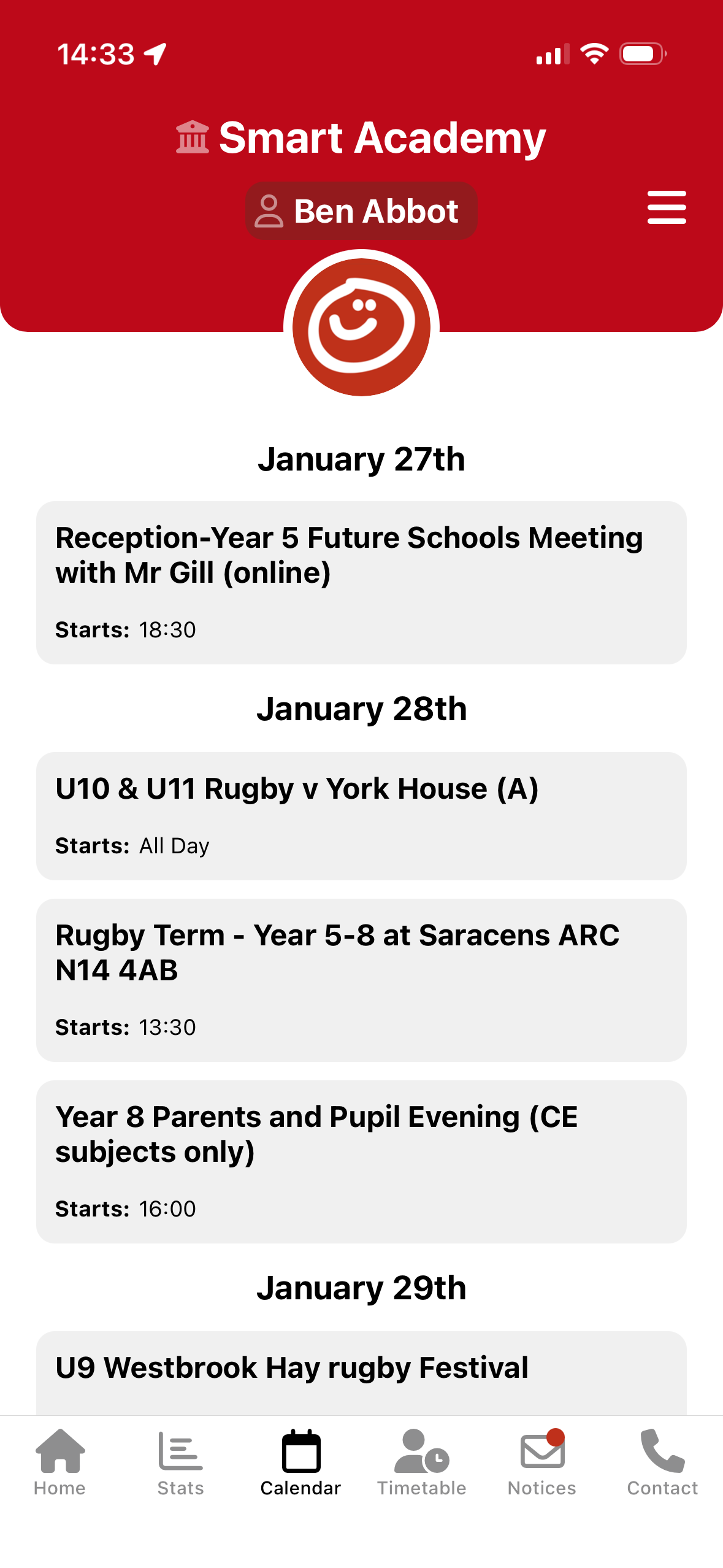
Google Calendar - This is usually the schools public calendar which you have on the school website
Screenshots below showing examples of the above data displayed on the App:
How to Generate PINs for Parents
Go to the Smartparents section in the left-hand navigation bar.
Select Students.
https://provision.realsmart.co.uk/admin/smartparents?page=studentsIf you are using smartparents for the 1st time tick the checkbox for all students.
If you are adding additional parents for new students select the dropdown titled 'Without PINs' and tick the checkbox for all students.Click Generate PINs at the top of the page.
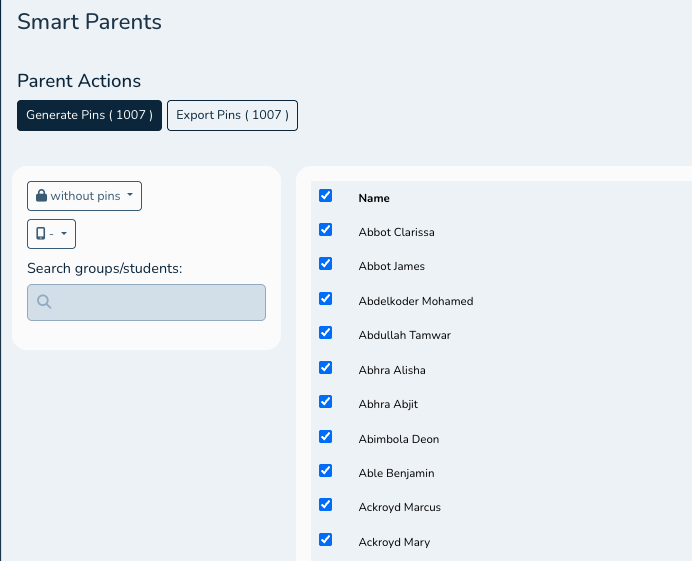
Then multi-tick all users click Export PINs to download a CSV file containing the generated PINs.
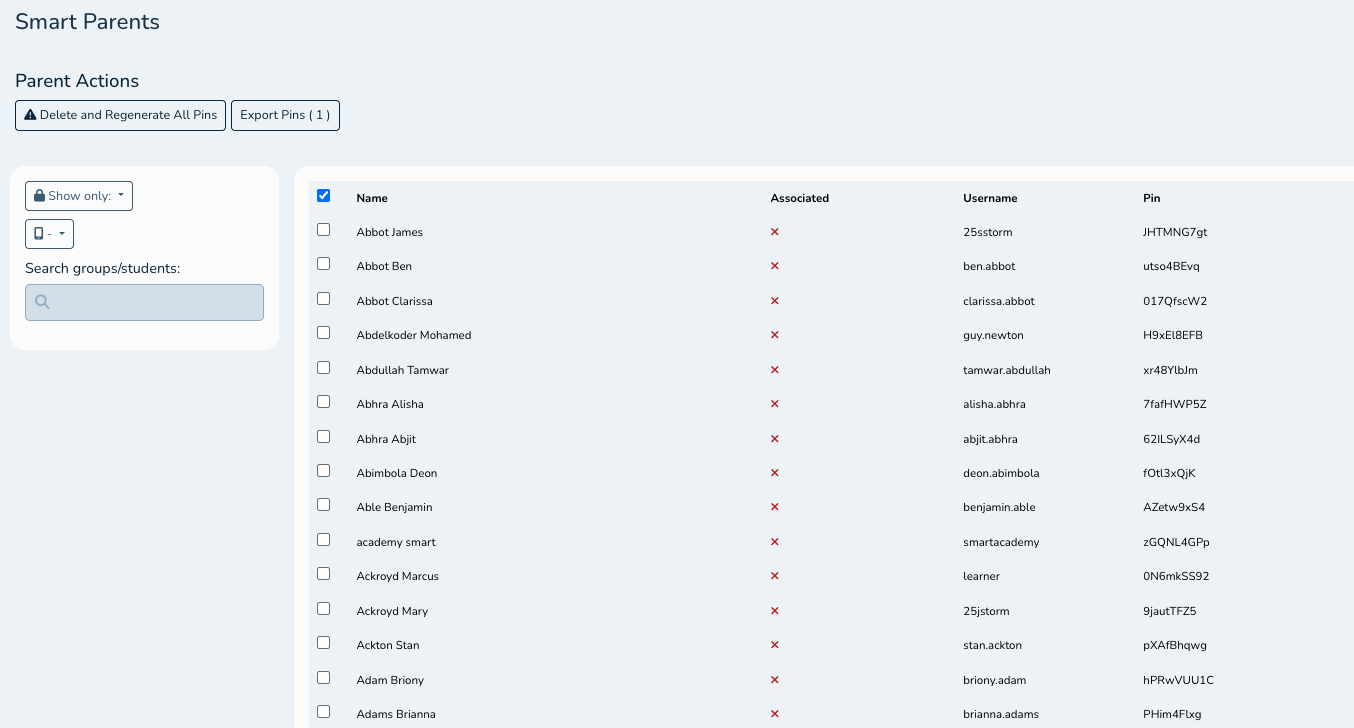
Do not share this entire csv with parents open it and copy the student pins and usernames to send to parents.
How to Send an in App Notification to Parents
Navigate to the Smartparents section in the left-hand navigation bar.
Click on Notifications
https://provision.realsmart.co.uk/admin/smartparents?page=notificationsClick the Create a New Notification. button
You’ll be prompted to fill in the following fields:
Title: The main heading that will appear in the app.
Brief Description: This appears as a subtitle in app notifications and on devices.
Featured Image (optional): Add an image to accompany the notification.
Body: The full content of your message, including any formatting or styling.
Tip: You can save a draft and return to it later if you’re not ready to send it immediately.
Once your message is ready, use the Recipients window to choose who will receive it. Anyone listed in the right-hand column will be included, and we will attempt to send the message to their devices.